Adding Nadia to Slack
Valence's AI Coach (Coach Nadia) can be added to your organization's Slack workspace to deliver personalized calendar-based coaching insights directly to users via DM. This page walks IT administrators through installation and helps end users get set up.
Installing into the Americas (US) Nadia region.

Requires an active Valence account. A Slack workspace admin must approve the installation. If your organization's Nadia data lives in a different region, your Valence contact will give you that region's page — contact support if you are not sure.
Overview
Coach Nadia on Slack delivers proactive coaching nudges and links to full coaching conversations in the Nadia web app. All in-depth coaching conversations take place in the browser — not inside Slack.
AI disclaimer — Coach Nadia's insights and coaching responses are generated by AI and may be inaccurate, incomplete, or not right for your situation. Use your own judgment, and verify anything important before acting on it.
Benefits
- Receive quick coaching insights directly in Slack — no need to context-switch to get value from Nadia.
- Personalized nudges tied to your actual calendar and upcoming meetings.
- One-click access to continue the conversation in the full Nadia coaching experience.
- Full control over schedule and frequency.
Installing the Coach Nadia Slack app
A workspace admin — or any user, depending on your org's Slack app approval policies — installs the Coach Nadia app from this page.
- 1
Use the Add to Slack button above to start the install.
- 2
Authorize the app in your Slack workspace.
- 3
Review and approve the requested permissions (see Permissions & data privacy below for details).
- 4
Once installed, Coach Nadia will appear in your workspace's app list.
User setup — connecting your account
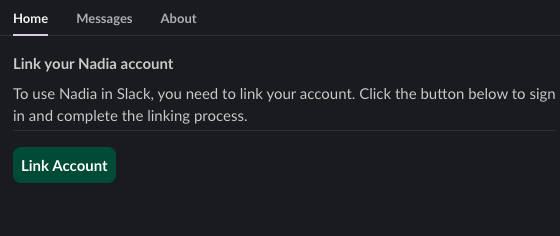
After the app is installed in your workspace, each user needs to link their Nadia account.
- 1
Open the Coach Nadia app in Slack (find it in your Apps list in the left sidebar).
- 2
Go to the Home tab.
- 3
Click "Link Account" and sign in, which links your Nadia account to your Slack user.
- 4
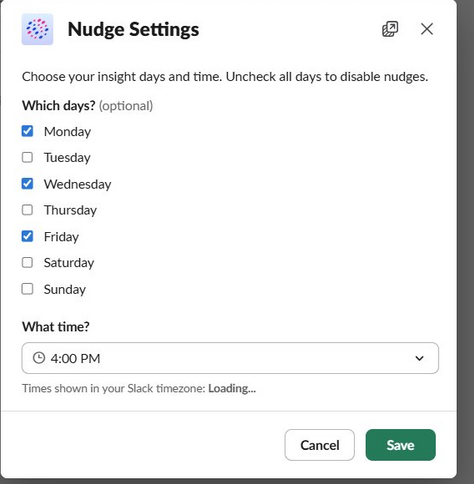
Click "Configure Schedule" and use the Nudge Settings dialog to choose which days and what time you want insights.
Prerequisites for users
- Your organization must have calendar integration enabled in Nadia (org-level and user-level).
- Your Slack email must match the email associated with your Nadia account.
- If your calendar is not yet connected, Coach Nadia will prompt you to connect it.
What to expect
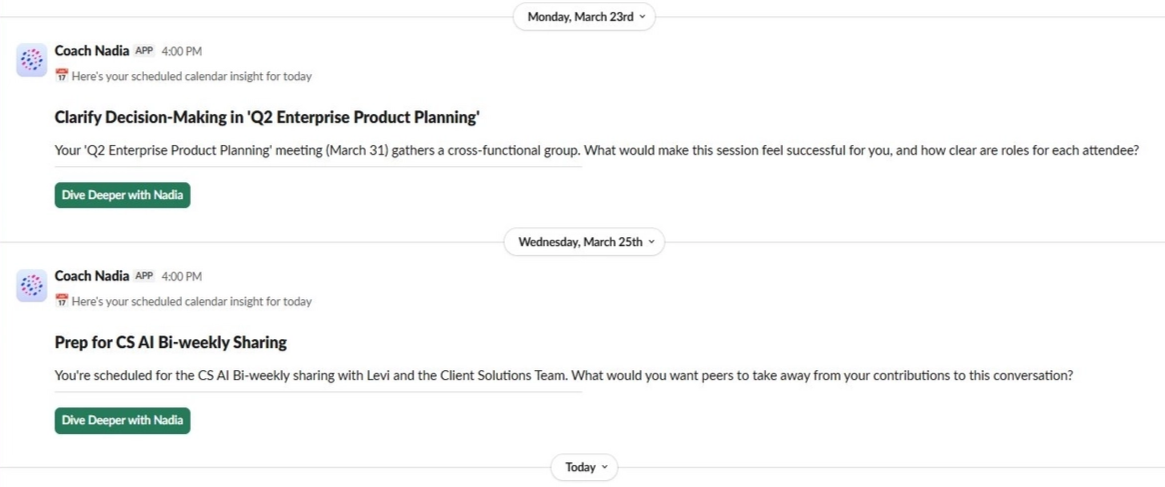
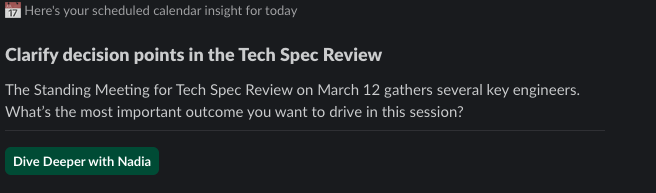
Once set up, users will receive a personalized Slack DM from Coach Nadia at their scheduled time. Each message includes:
- Calendar-based coaching insights — a brief, personalized nudge based on your upcoming meetings and schedule.
- "Dive Deeper with Nadia" button — opens a full coaching conversation in the Nadia web app where you can continue the discussion.
- Feedback options — react to any message with an emoji to share quick feedback.
Permissions & data privacy
Coach Nadia requests the following Slack permissions:
| Permission | Purpose |
|---|---|
chat:write | Send coaching DMs to users |
im:write | Open DM channels to deliver insights |
reactions:read | Obtain feedback from users on the quality of the generated insights |
users:read | Get the user's preferred timezone and verify membership of the workspace and enterprise account |
What Coach Nadia does not do
- Does not read any Slack messages, channels, or DMs.
- Does not access files, threads, or channel content.
- Does not store or process any Slack workspace data beyond what is needed to deliver coaching DMs.
All coaching conversations are confidential and take place exclusively in the Nadia web app — never inside Slack.
Read the Nadia for Slack privacy policy, or Valence's full privacy policy.
Troubleshooting
| Issue | Resolution |
|---|---|
| "Account Linking Error" after clicking Link Account | Make sure your Slack email matches the email on your Nadia account, then return to Slack and try again. |
| Not receiving DMs | Confirm you have saved a schedule under "Configure Schedule" in the Coach Nadia Home tab, and that your calendar is connected in Nadia. The Home tab shows "No insights scheduled yet" when no schedule is set. |
| Calendar not connected message | Visit your Nadia settings to connect your calendar, or ask your admin to enable calendar integration for your org. |
Support
For assistance with the Coach Nadia Slack integration, contact us at hi@valence.co or use our support form.
View Valence's full privacy policy here.